Your attempt is looked at as a whole — the session recording, your account activity, and the state of your computer. Nothing is judged on its own.
Part of that picture is what was running in the background. A remote-access or meeting tool is picked up even if you never opened it, never used it, and it was never connected to anything.
Everything below is here to help you clear those things in advance, so the only thing on your mind during the exam is the exam.
The rules are set out in the FAQs, the dashboard announcement, the pop-up before the exam, and the Exam Declaration you accept before starting.
This applies to the engineering and real estate divisions.
Before you start
One screen, a clear desk, the door in view, and nothing else switched on.
| DO | Dont |
|---|---|
| One computer, plugged in, webcam on | A second screen, or your phone in the room |
| A private room with the door closed | Anyone else who can see your screen |
| Light in front of you | Notes, books or papers on the desk |
| A calculator | Any other device |
Clear your machine
Do this every time, even on a laptop you have just restarted — most of these tools start themselves again with Windows.
- Close what you do not need. Chat, email, meetings, VPN, screen recorders, and any AI or assistant tool, including pre-installed ones.
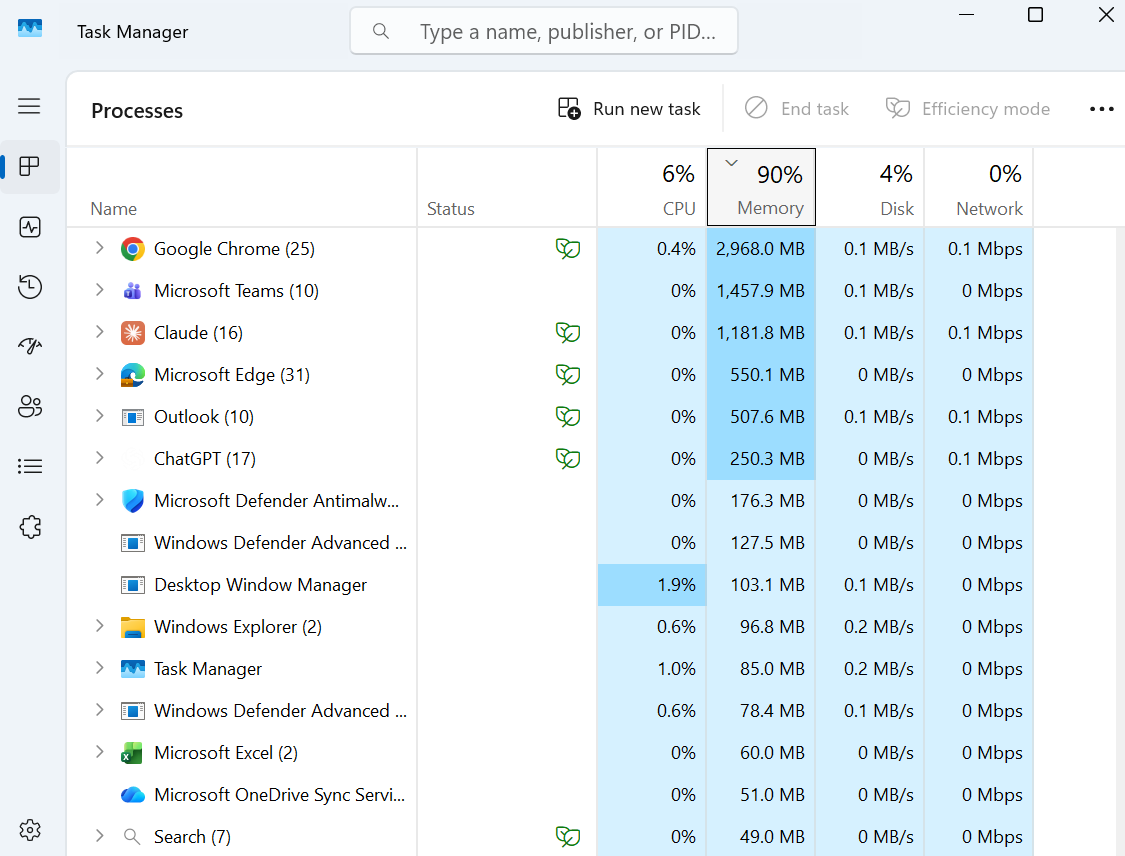
- Press Ctrl + Shift + Esc to open Task Manager. If you only see a short list, click More details.
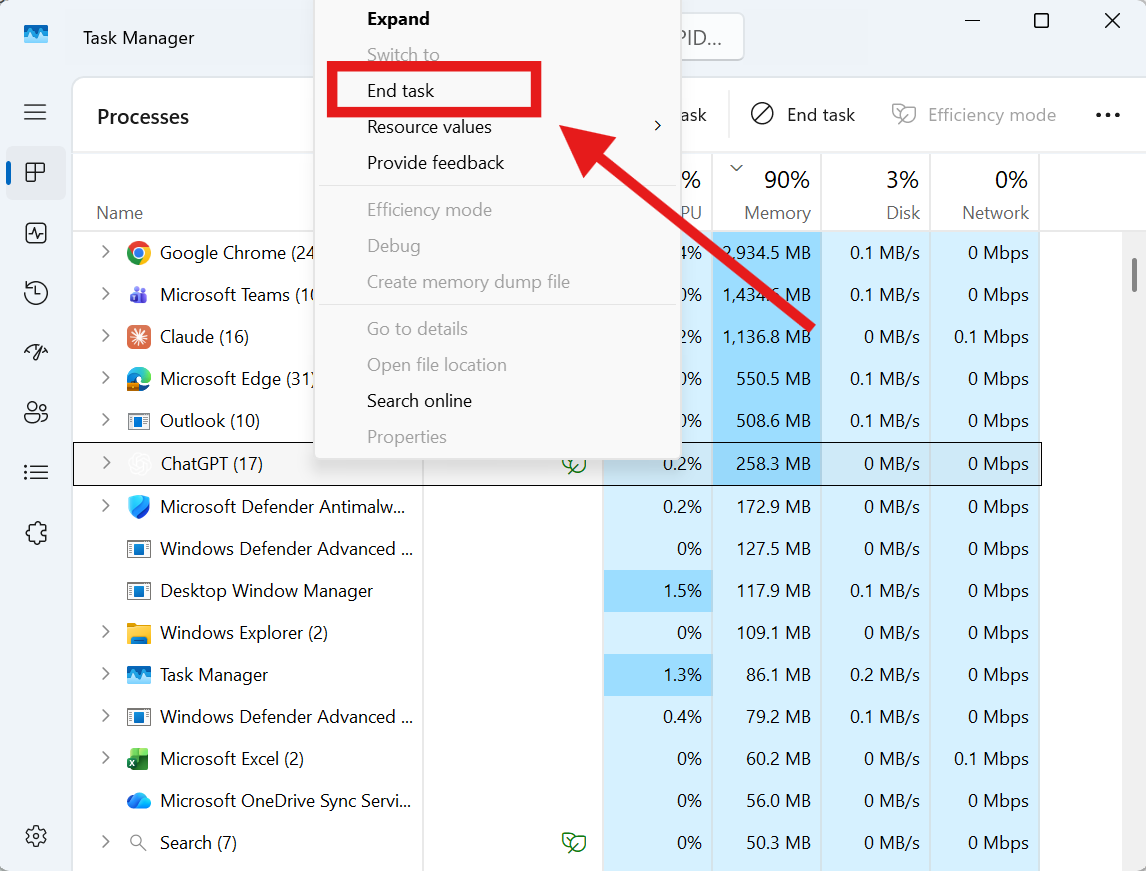
- Right click on the tool and click End task. Look for remote access (AnyDesk, TeamViewer), meetings (Zoom, Teams), recorders, and assistants.
Press Ctrl + Shift + Esc. If you see an unauthorized app, please right click on that app
Select the app, then choose End task. Check Background processes as well as Apps.
You do not need to uninstall anything. AnyDesk sitting on your laptop unused is not a problem; AnyDesk running during the exam is.
What costs people their attempt
| What happens | What to do | |
|---|---|---|
| Remote or meeting tool running | Counts even if never opened or connected | End it in Task Manager, then check again |
| Signed in on another device | The exam closes by itself. This happens even to people sitting alone in a locked room | Sign out everywhere else, phone included |
| Another person in the room | Counts even if they were sitting their own exam | Private room, door closed, nobody in view |
| SMOWL tool closed | Can count whether or not you meant it | Keep it running. |
| Wrong device | The exam will not open on a phone or tablet | One computer, the one you tested. Never switch mid-exam |
| Leaving the permitted references | Treated as browsing other material | Open Binaa and the codes before you start |
The engineering exams are open book for the Binaa Library and Thinkprop courses only. Open them in separate tabs before you click Start, then stay in those tabs. Switching the exam language between Arabic and English is allowed.
Signing in on one device only
Sign out of ThinkProp on your phone and any other computer before you begin.
This is the second most common thing we see, and the most surprising one, because it can happen while you are sitting completely alone in a locked room. The exam closes by itself, and the reason is not the room — it is that your account was active in two places.
What counts as a second login
| Situation | Why it happens |
|---|---|
| Your phone is still signed in | The most common one by far. The app or browser stays signed in quietly and checks in on its own |
| A tablet or second laptop at home | A saved session wakes up and reconnects without anyone touching it |
| Your office PC | Left signed in from the last time you used it |
| Two different browsers | The exam open in chrome and the course page in Microsoft edge counts as two |
How to be sure
- Pick up your phone and sign out of ThinkProp. Not just close the app — sign out.
- Do the same on any tablet, second laptop or office computer you have used recently.
- Open the exam in one window, in one browser, and leave it there.
If every device except the one in front of you is signed out, this cannot happen to you.
Your room, and who is in it
You will need to be on your own, in a private room, for the whole exam. We know that is easier at home than in a busy office, so it is worth planning a little ahead.
People
- Nobody else in the room, and nobody able to see your screen through a doorway or a glass partition.
- Colleagues sitting their own exam still count. Two people taking the same exam side by side is one of the situations we see most often, and it affects both attempts — even when neither person spoke to the other.
Phones and cameras
Taking a photo of a question is recorded, and it affects the attempt.
Please do not photograph or film the screen, and ask anyone nearby not to either. We mention it because it is rarely done with bad intent — people take a picture of a question they want to think about, or a friend takes a photo of them working. Both are picked up by the review, and both affect the attempt.
- No photos or video of the screen, by you or anyone else.
- No screen sharing, mirroring, casting or recording.
- Your phone is best left in another room — face down on the desk still counts as in the room.
Was this article helpful?
That’s Great!
Thank you for your feedback
Sorry! We couldn't be helpful
Thank you for your feedback
Feedback sent
We appreciate your effort and will try to fix the article