Give yourself at least 30 minutes before you plan to begin. Most of the steps are quick, but Step 7 downloads an application, and that is not something to rush.
Before you begin
Five things to sort out first.
| You need | |
|---|---|
| A laptop or desktop | Phones are not supported |
| A working camera and microphone | Both. Test them in a video call first |
| Chrome | Recommended, and what the steps below describe |
| A stable connection | A poor connection is not grounds for a free retake |
| A quiet room, alone | For the full hour, with your camera on |
Company laptops often block downloads and camera access, and you will not be able to change that yourself on the day. Try the steps below now, while there is still time to borrow a different computer.
The eight steps
Step 1 — Check that the sessions have been marked as completed
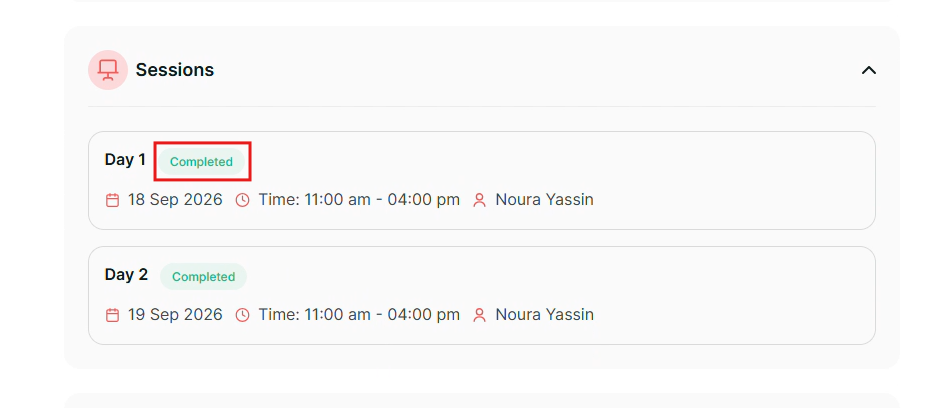
The sessions must show as completed before you can go on to the exam.
Step 2 — Complete the survey
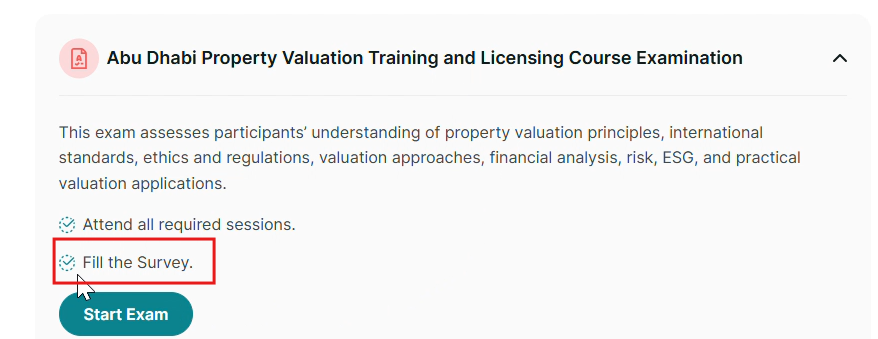
Click Start Survey and complete it. Then click Start Exam. You will be taken to the SMOWL dashboard.
Start Exam will not take you anywhere useful until the survey is done. It only takes a moment.
Step 3 — Accept the privacy policy
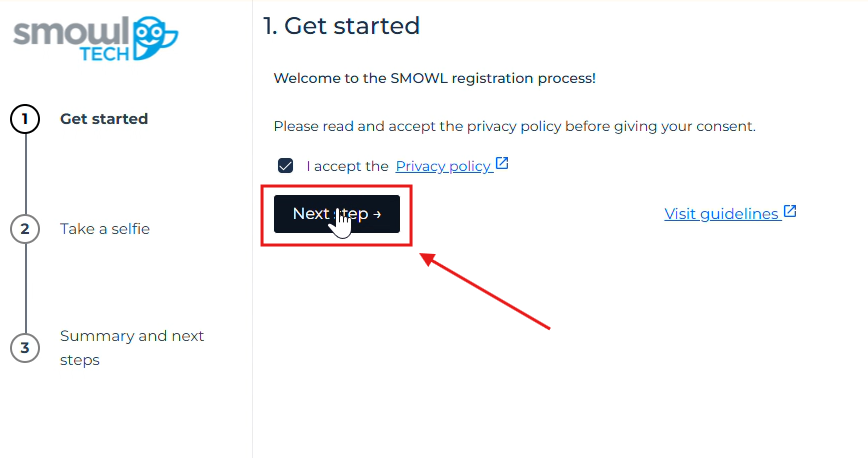
Read the privacy policy and accept it. Then click Next.
Step 4 — Take your selfie
Chrome will ask to use your camera. Click Allow.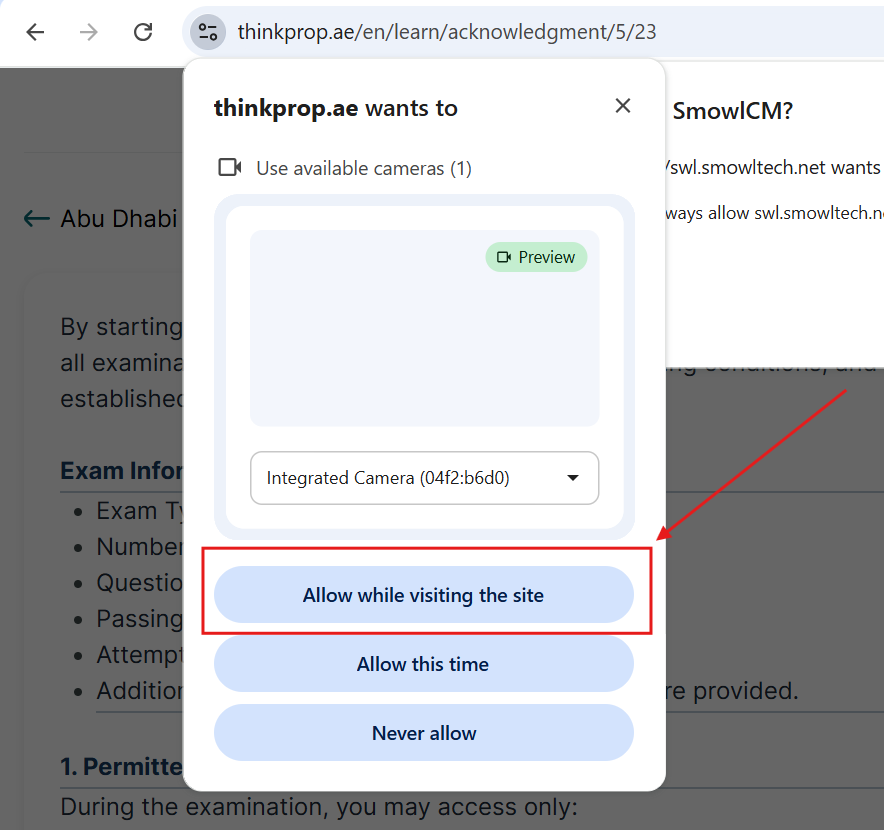
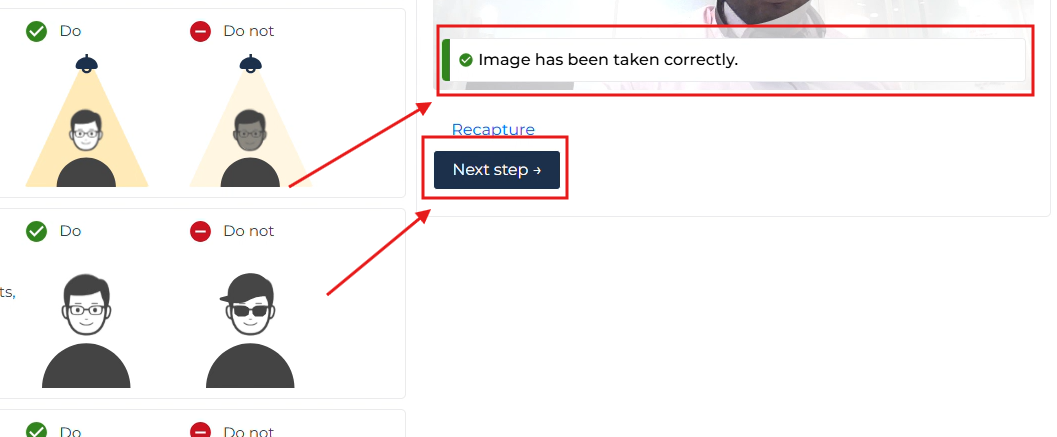 Line your face up inside the highlighted frame, then click Capture.
Face the camera straight on. Keep the light in front of you. If the photo is dark or blurred, it is usually the light behind you rather than the camera.
Chrome remembers your answer, so the camera will stay off. Click the padlock in the address bar, set Camera to Allow, then reload the page.
Step 5 — Finish the check
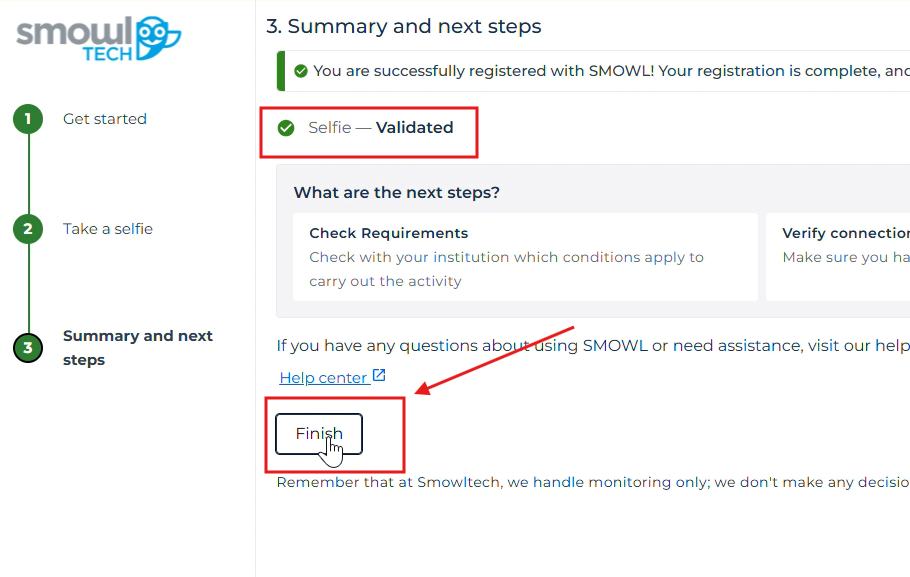 Once your selfie is accepted, click Finish. Your identity check is done.
Step 6 — Open the exam session
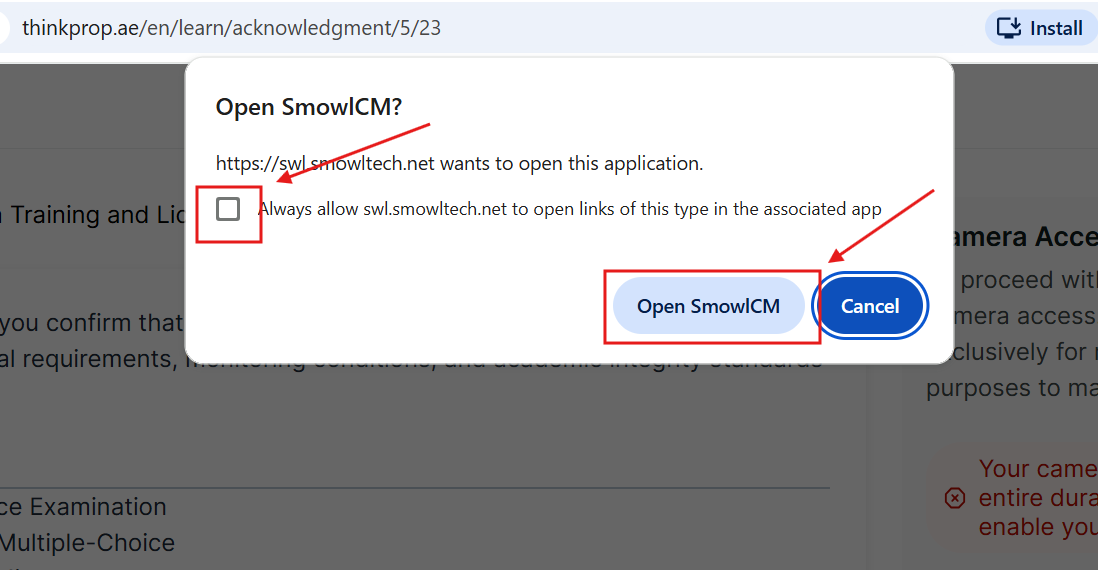 You will land on a page showing Open URL SMOWL. Click it.
Then check your camera and microphone are both on. If either is off, turn it on by clicking on the highlighted part within the URL: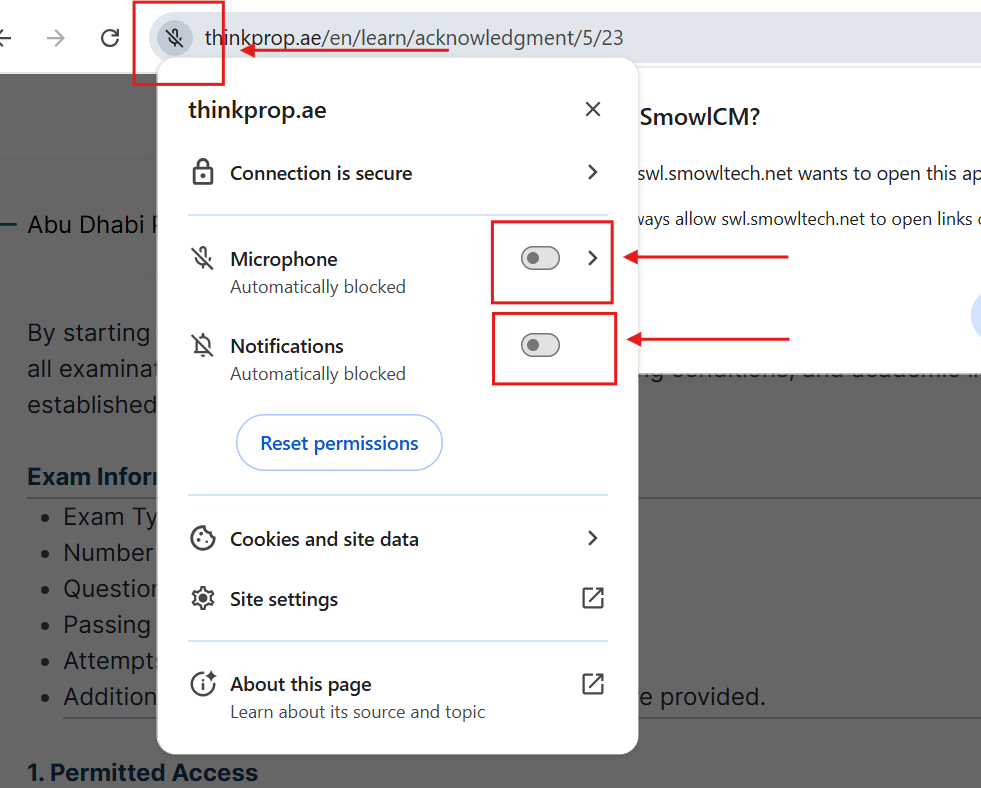
Camera and microphone are both needed.
Step 7 — Download the monitoring app
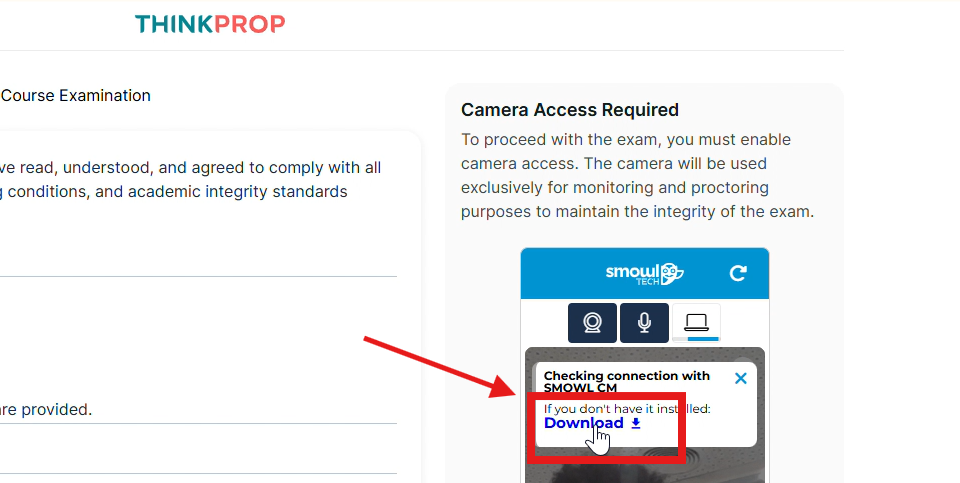 Click the download icon to get the SMOWL monitoring application. Then open the downloaded file to start it.
Downloading it is not enough on its own. It has to be running before you can go on.
If nothing seems to happen, check your Downloads folder. On a work computer the download may be blocked outright, which is why it is worth testing days in advance.
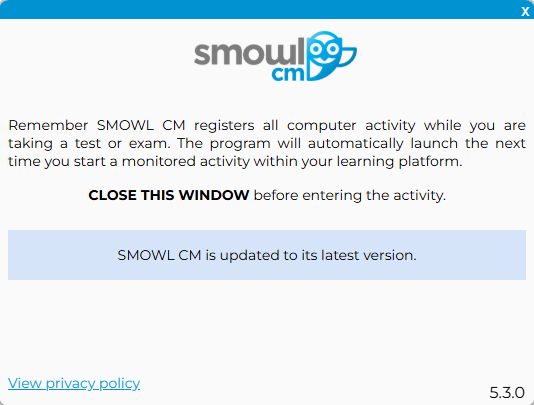
Step 8 — Start your exam
When audio, video and the monitoring app are all showing as active, accept the acknowledgement and click Proceed to Exam.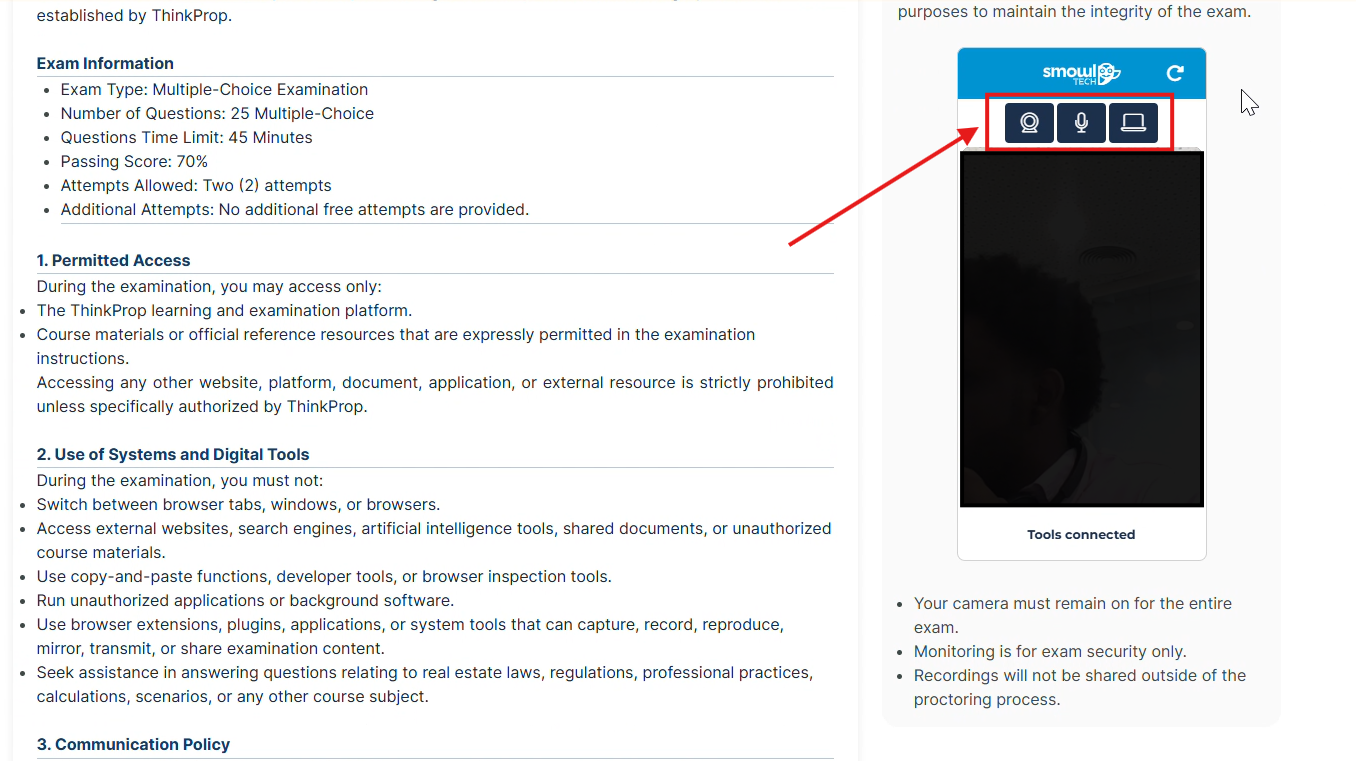
Open the Binaa Library and the Abu Dhabi codes in separate tabs now. You cannot open new tabs once the exam starts.
During your exam
SMOWL runs in the background. You do not have to do anything with it and it will not interrupt you. Stay in view of the camera, and submit when you are done.
| Commonly picked up | What to do instead |
|---|---|
| Moving out of view | Stay in front of the camera for the whole hour |
| Someone appearing behind you | Sit somewhere private, and tell the household the time |
| The camera covered or off | Check nothing is over the lens. Privacy shutters are easy to forget |
| A face that is hard to see | Put the light in front of you, not behind |
| Switching tabs | Open everything you need before you start |
| A second screen, or screen sharing | Unplug the second monitor. Close remote-access software |
If you get stuck
If you cannot get through, work down this list. Your purchase is not affected.
- Are both sessions complete? Step 1. Nothing later will work until they are.
- Did you finish the survey? Step 2 needs the survey done first.
- Is your camera allowed? Padlock in the address bar, Camera set to Allow, then reload.
- Is your microphone on? Both are needed, and the microphone is the one people miss.
- Is anything else using your camera? Close every video-call app and reload.
- Is the monitoring app actually running? Downloading it is not the same as opening it.
- Try Chrome, if you are not already using it.
- Still stuck? Screenshot what you see and email eng.support@thinkprop.ae with your exam reference number, which step you are on, and how many days are left on your window.
Your privacy
SMOWL runs during your exam only. It is not watching while you use the rest of the platform.
Was this article helpful?
That’s Great!
Thank you for your feedback
Sorry! We couldn't be helpful
Thank you for your feedback
Feedback sent
We appreciate your effort and will try to fix the article